Appearance
Timetable views
Who this is for: All roles with portal access; editors need config.manage for commitment edits
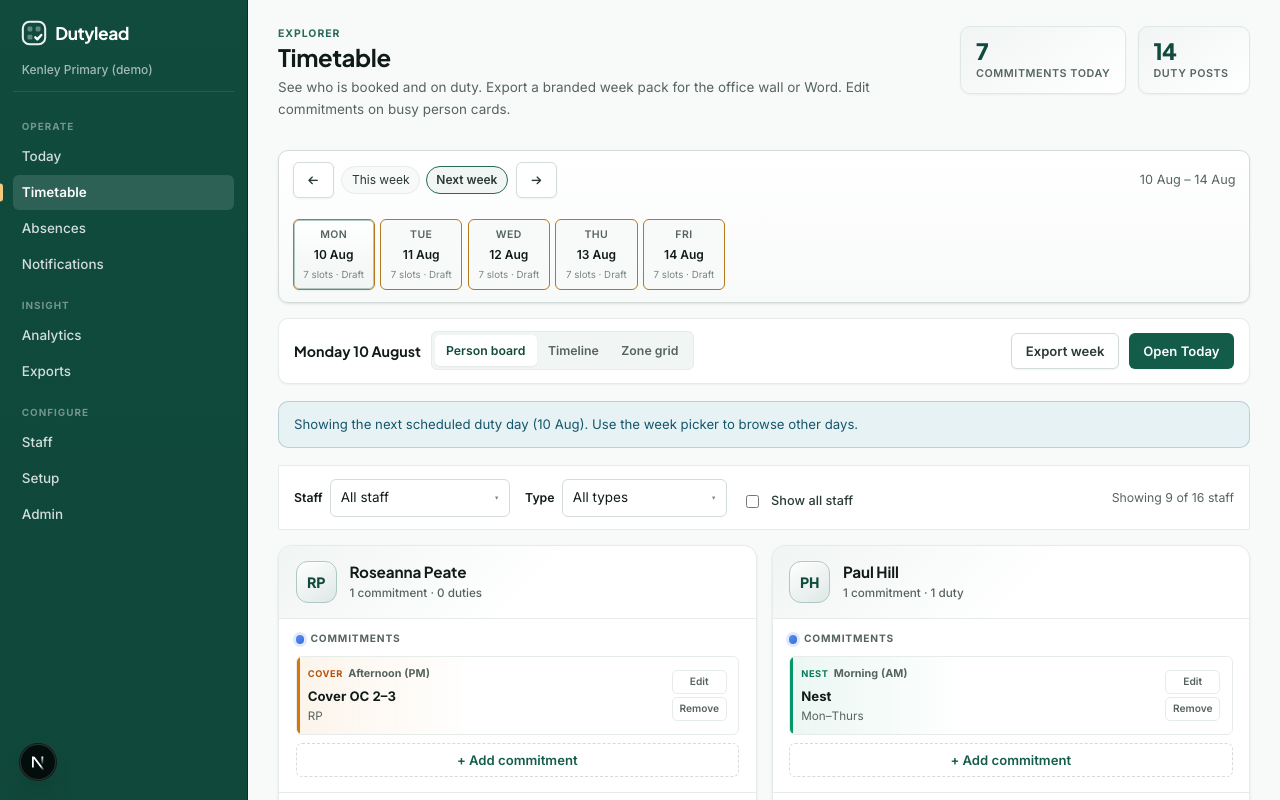
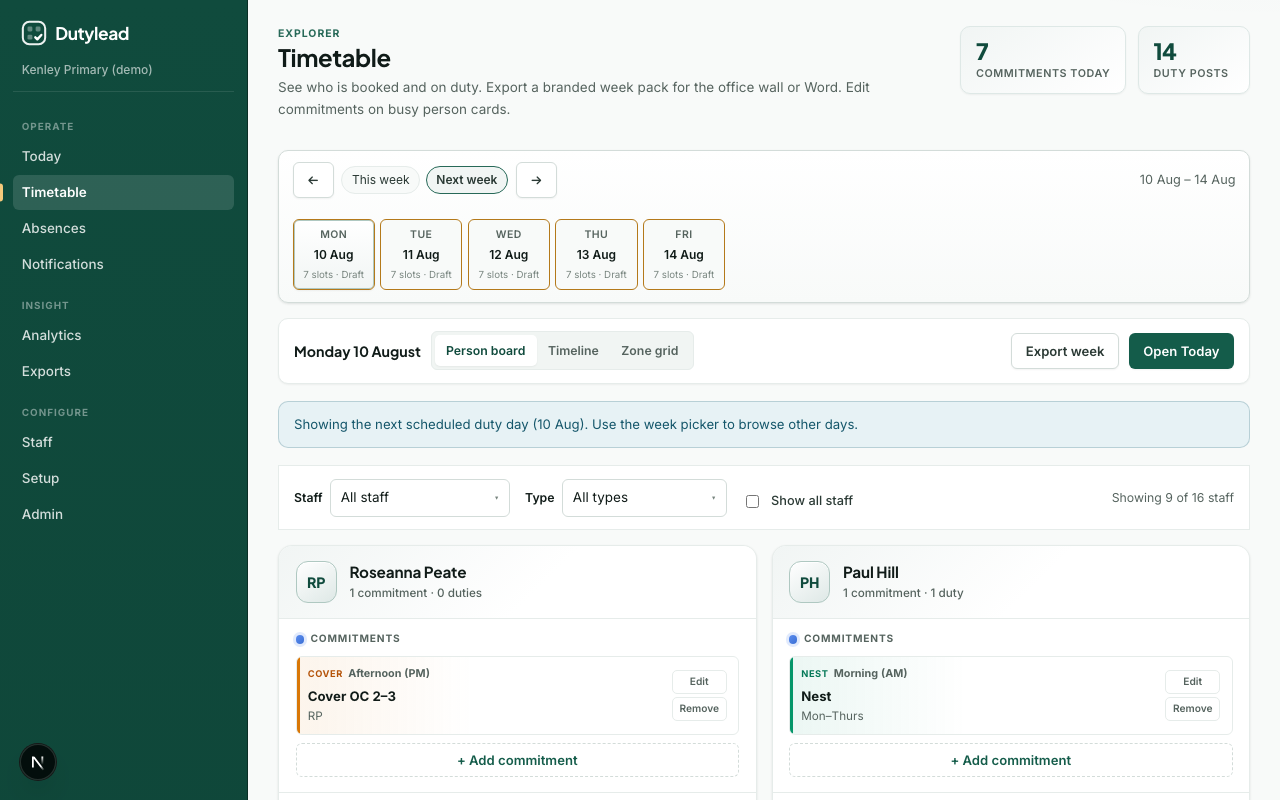
What you'll achieve: Explore who is booked and on duty using person, timeline, and zone views
Open Timetable
- Select Timetable in the sidebar.
- Choose the week with the week picker.
- Pick a view mode.
View modes
Person board
Cards per staff member showing duties and commitments. Best for “who is overloaded?”
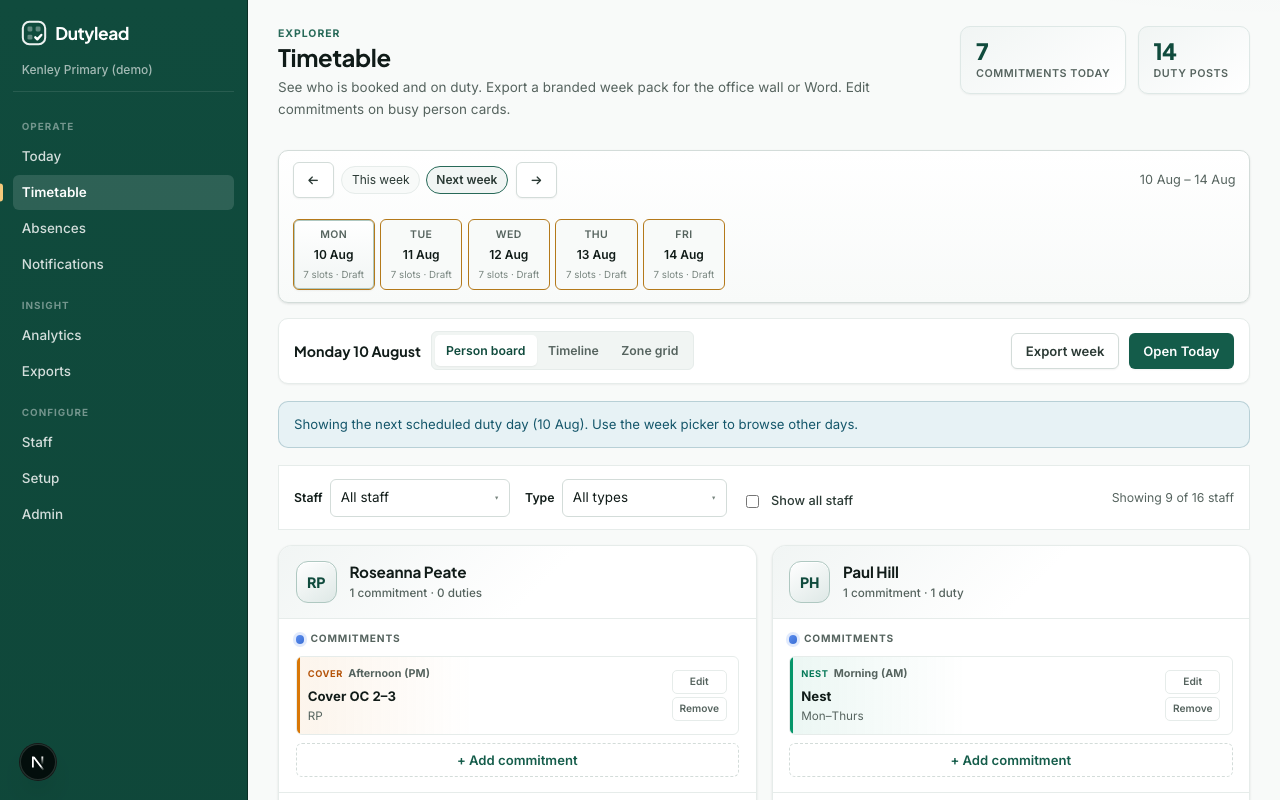
Timeline
Chronological view of events across the day.
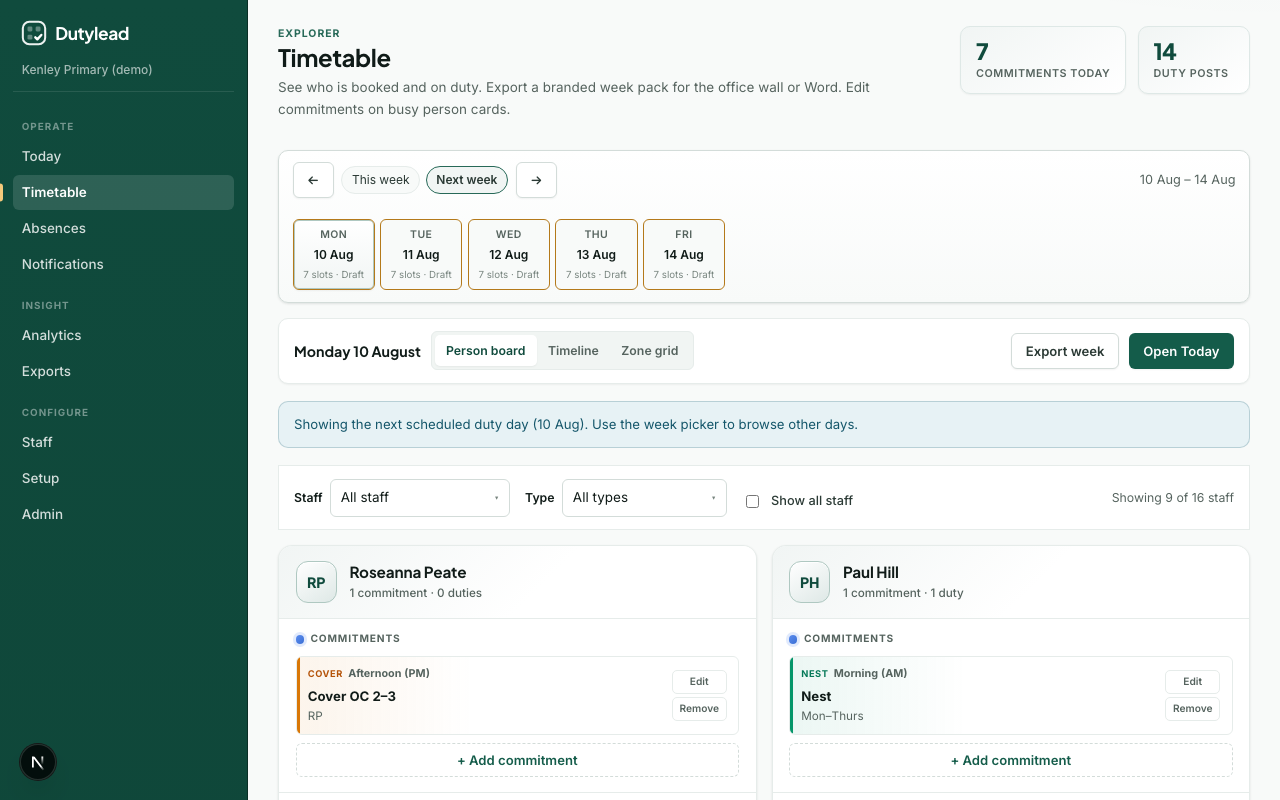
Zone grid
Slots organised by zone — best for playground / hall coverage checks.
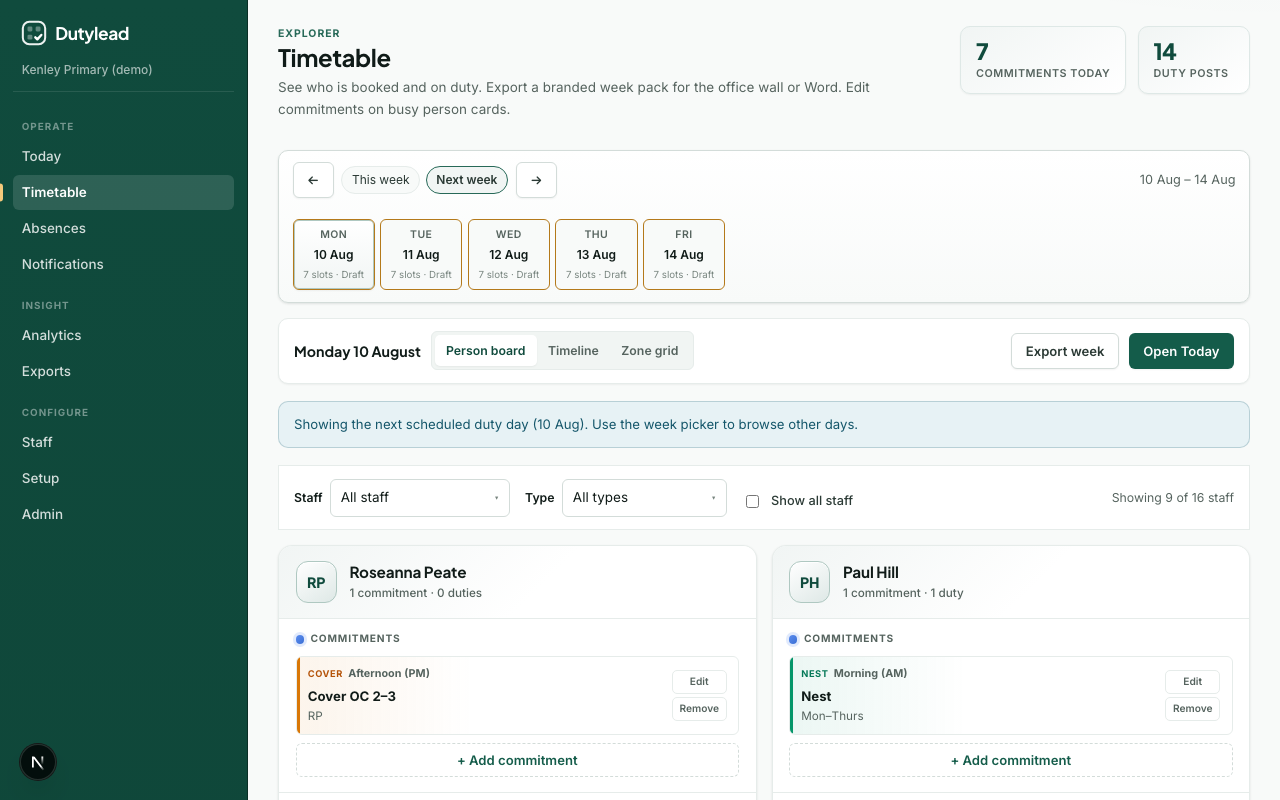
Filters
| Filter | Use |
|---|---|
| Staff member | Focus on one person |
| Activity type | Duty vs commitment kinds |
| Show all staff | Include people without posts |
Stats summarise commitment count and duty posts for the current filters.
Editing commitments
On person cards, users with config.manage can edit commitments inline. See Weekly commitments.
Jump to duty day / Today
Use links to jump to the next scheduled duty day or open Today for building and publishing.
Week export
Use the toolbar Week export menu to download a branded week pack without leaving Timetable. Details: Exports.