
Appearance
Initial setup
Who this is for: Tenant owner, Admin
What you'll achieve: Take a blank school from branding through a published sample week
Requires role
config.manage — Tenant owner or Admin
Before you begin
- You can sign in to
/t/{subdomain}/login - Staff can be added during or after setup (recommended: import staff before template assignment)
Blank-school onboarding does not inject example school data. Everything you see is what you configure.
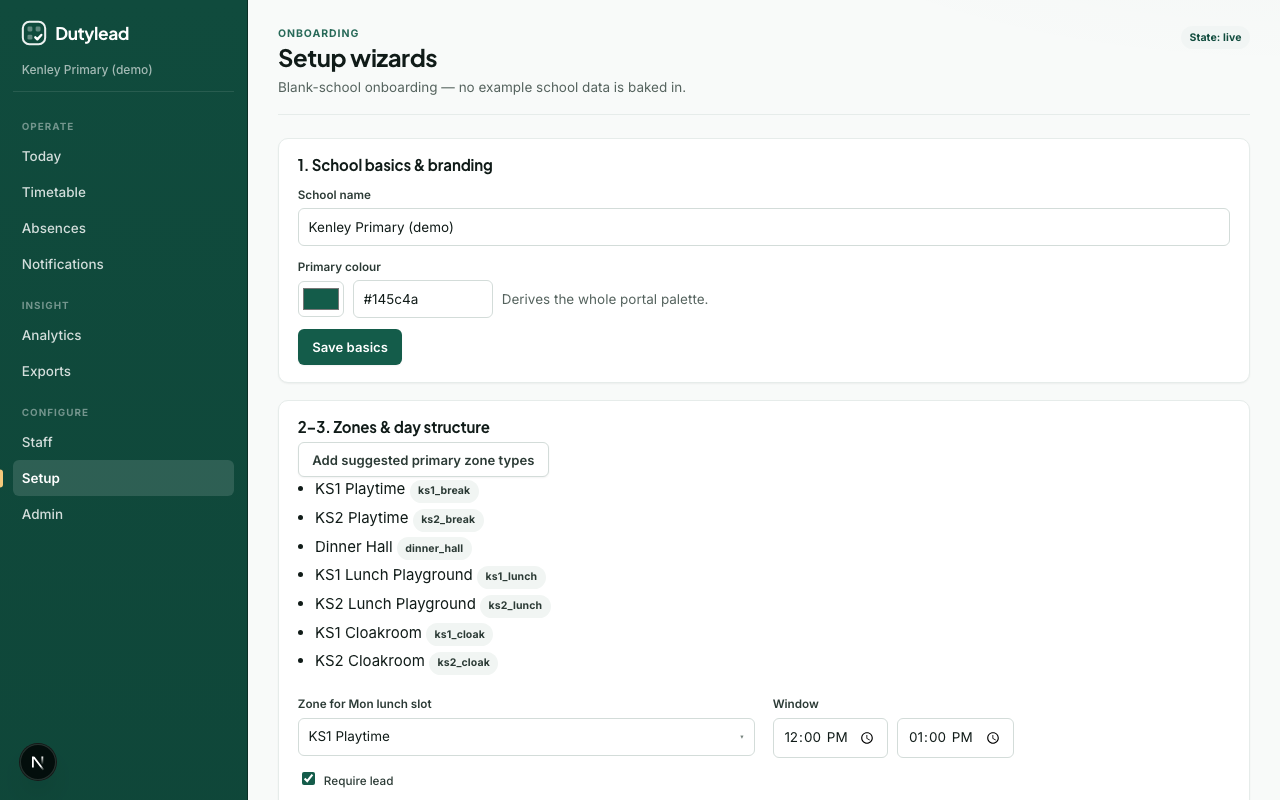
Setup state
The page shows a state badge: not_started → in_progress → live. Mark live only after you have reviewed a sample week.
Step 1 — School basics & branding
- Open Setup.
- Enter School name.
- Choose a Primary colour (colour picker or hex). This derives the whole portal palette.
- Select Save basics.
Timezone defaults to Europe/London. The email-from name uses the school name.
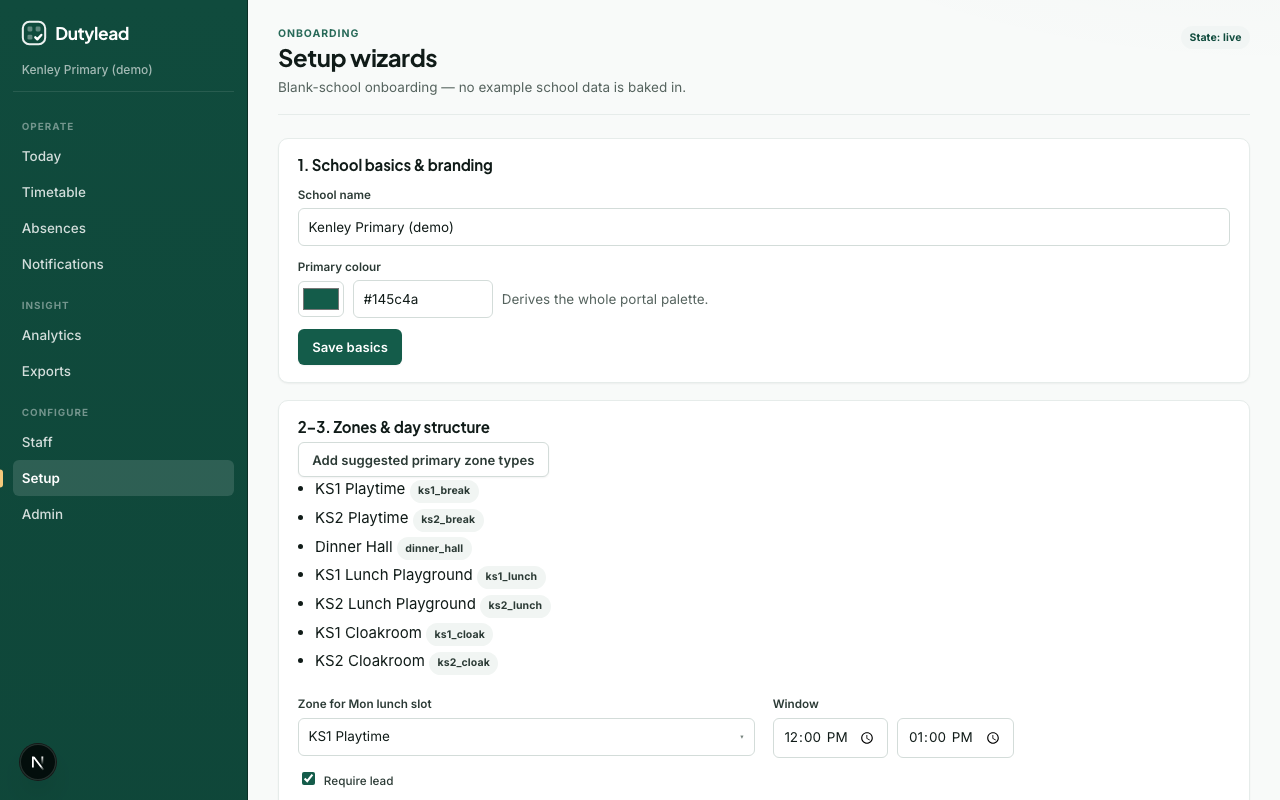
Steps 2–3 — Zones & day structure
- Select Add suggested primary zone types to create typical primary zones (KS1/KS2 play, dinner hall, cloakrooms, and similar).
- Choose a Zone for Mon lunch slot.
- Set the time Window (start and end).
- Optionally require a lead and set Min headcount.
- Select Save Mon–Fri window to create Monday’s slot and clone it to Tuesday–Friday.
First aider
Saved lunch slots request the first_aider capability so cover prefers someone with that flag.
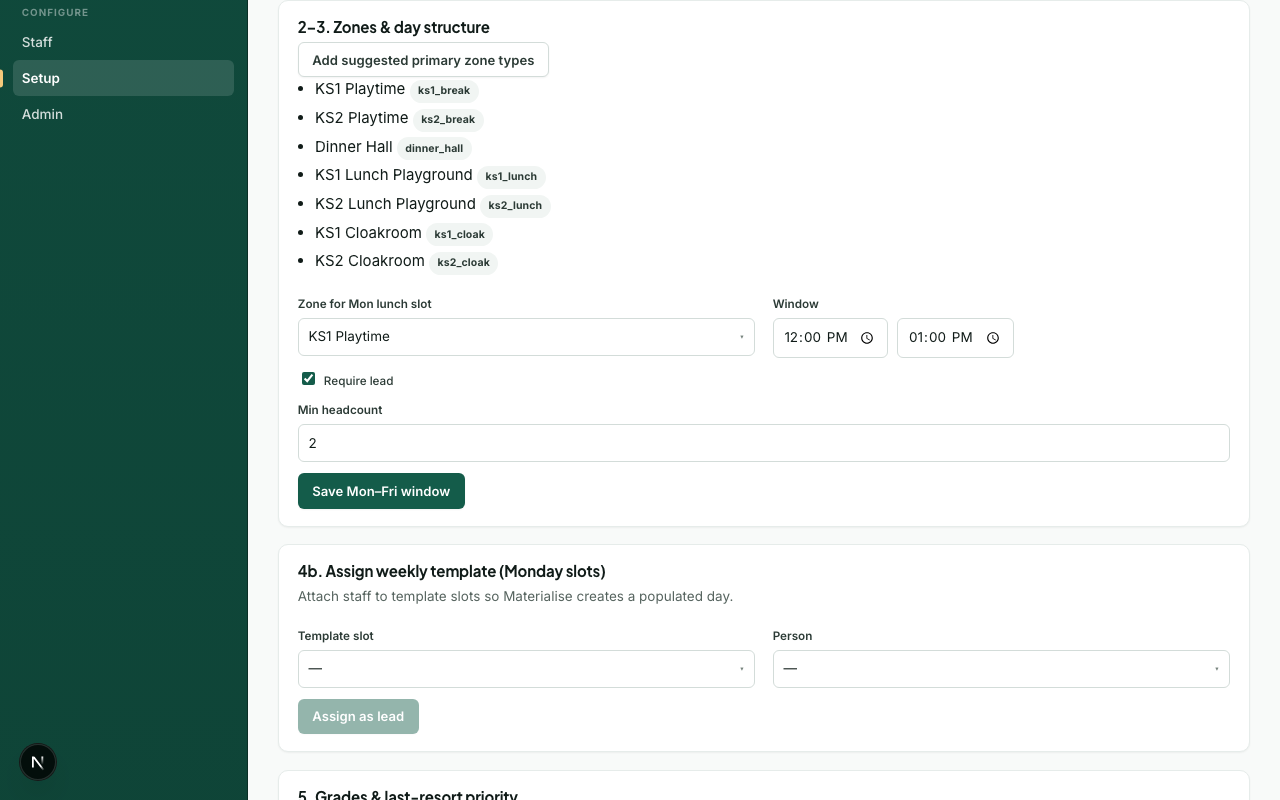
Step 4b — Assign weekly template (Monday slots)
- Ensure people exist under Staff (add manually or import).
- Choose a Template slot and a Person.
- Select Assign as lead.
Materialise uses these template assignments when building a populated day.
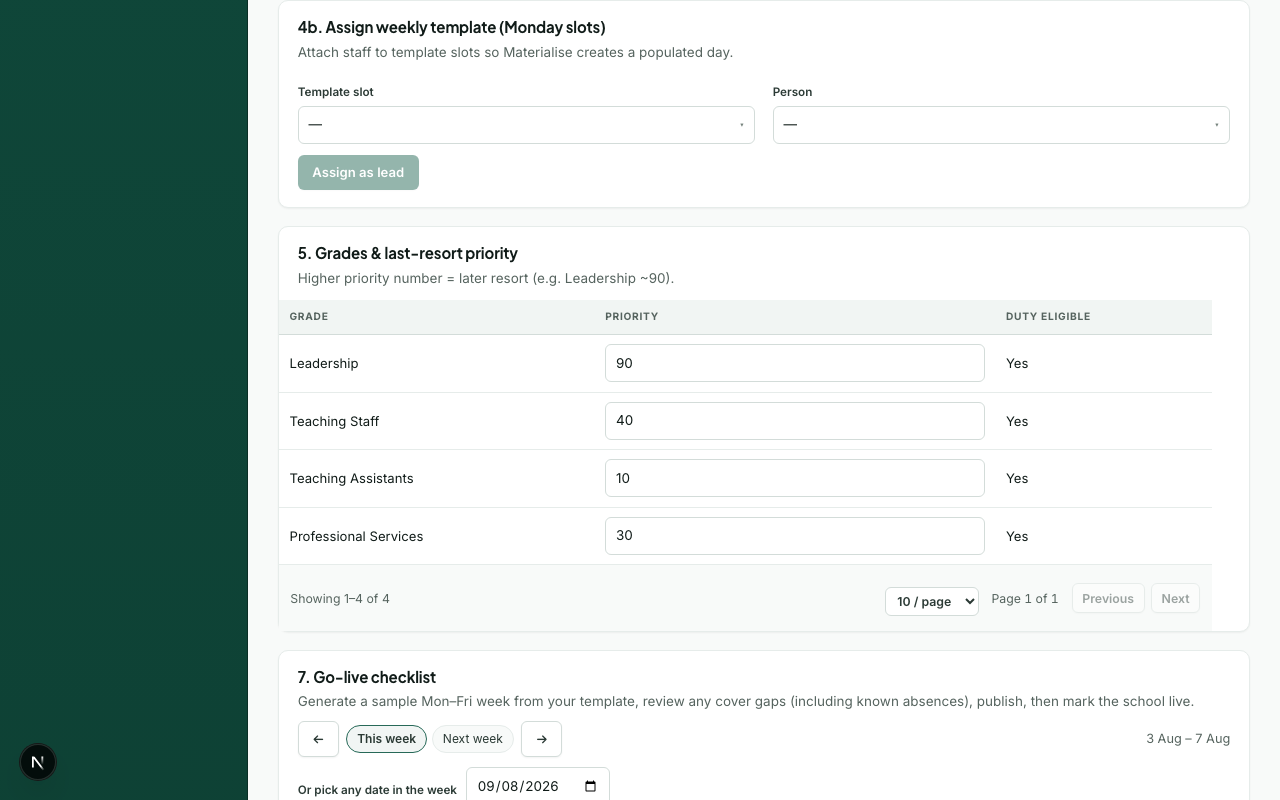
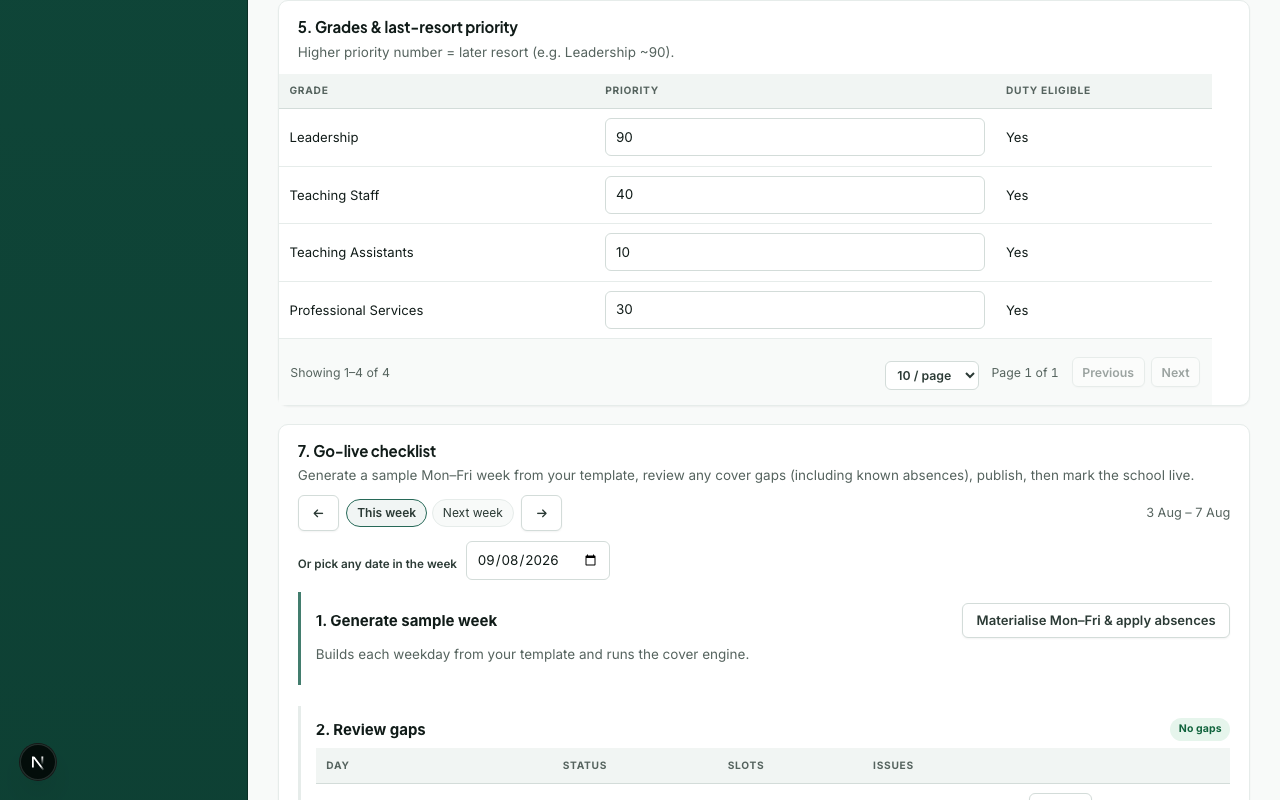
Step 5 — Grades & last-resort priority
- Review each grade’s Priority number.
- Remember: higher number = later resort (for example Leadership ~90).
- Change a priority and leave the field (blur) to save.
Step 7 — Go-live checklist
- Use the go-live panel to generate a sample Mon–Fri week from your template.
- Review cover gaps (including known absences).
- Publish the week when you are satisfied.
- Select Mark live to set setup state to
live.
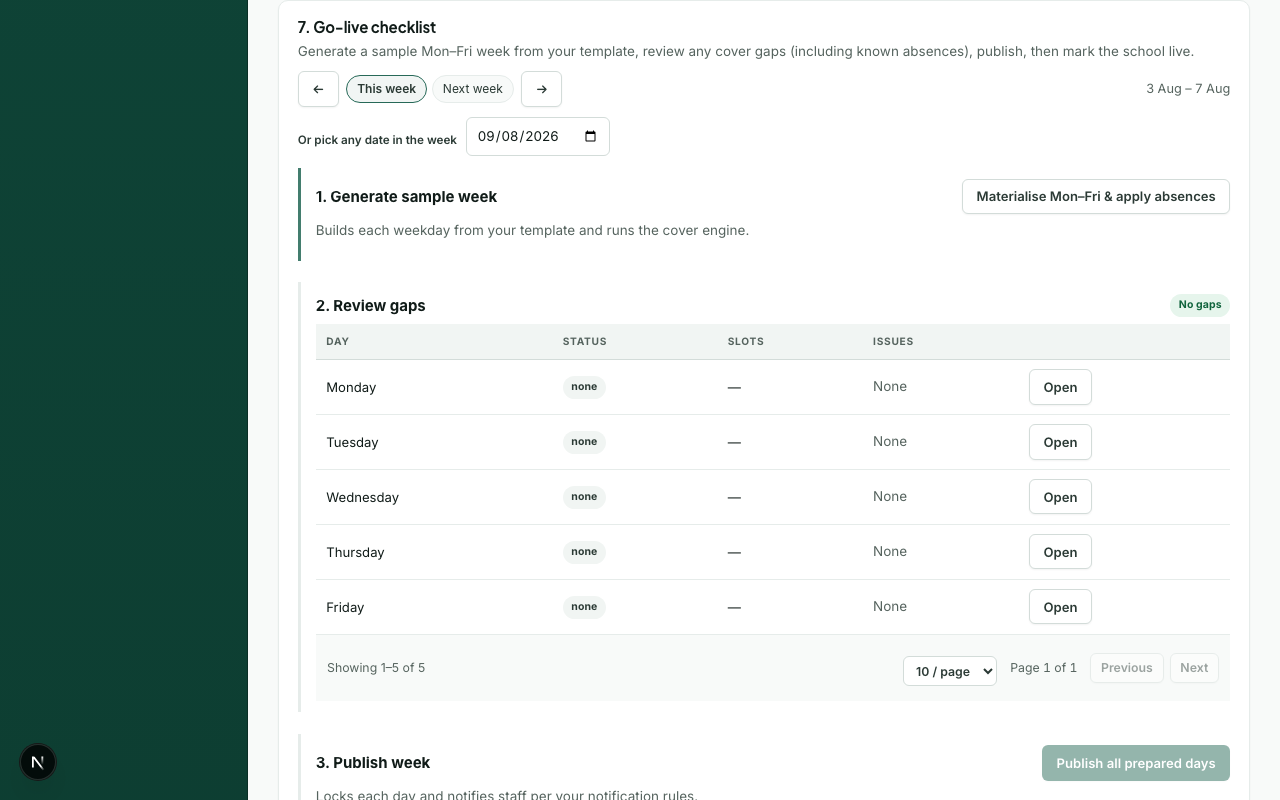
For a fuller walkthrough of the publish wizard, see Go-live checklist.
What happens next
Troubleshooting
| Problem | What to try |
|---|---|
| No template slots | Save a Mon–Fri window first |
| Cannot assign lead | Import or add staff, then refresh the person list |
| Gaps after generate | Adjust template assignments, duty tiers, or headcount rules |