
Appearance
Navigating the portal
Who this is for: All users
What you'll achieve: Find every area of the school portal using the sidebar
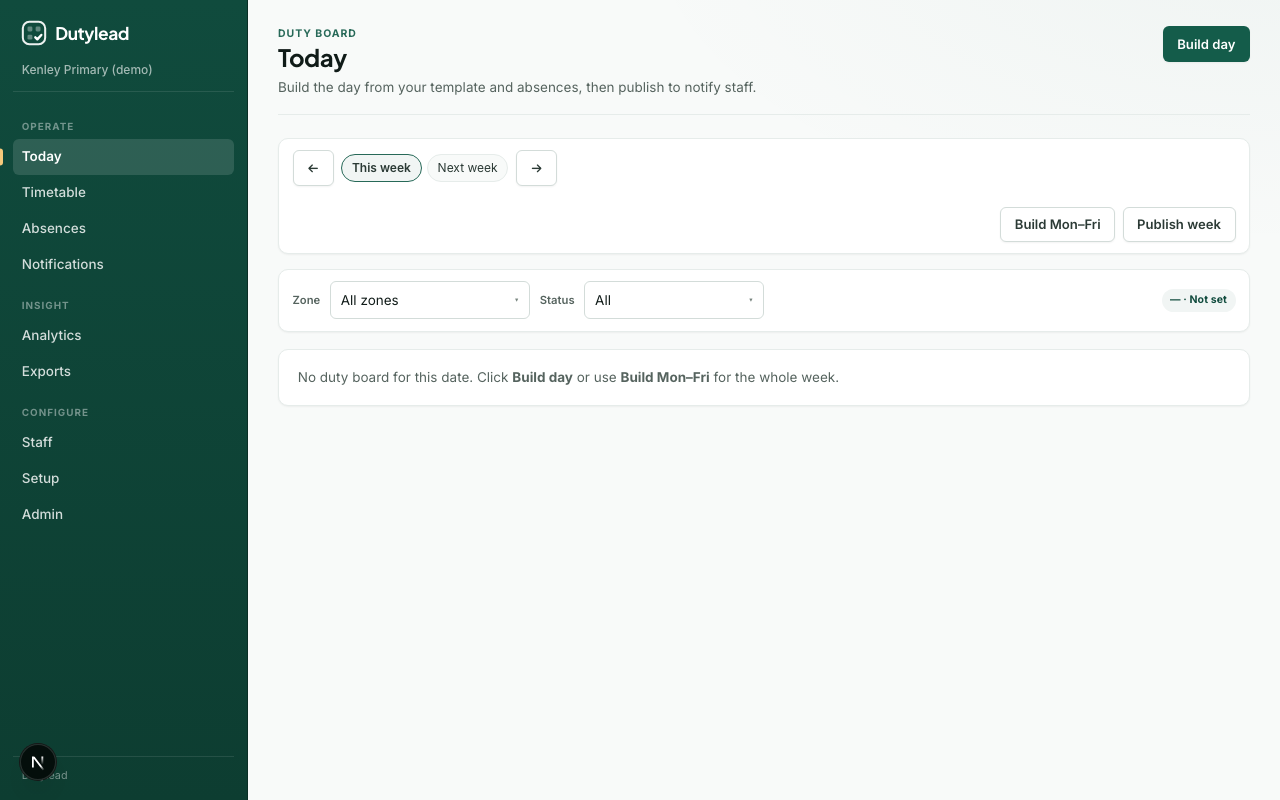
Sidebar sections
The portal groups pages into three sections.
Operate
| Page | Purpose |
|---|---|
| Today | Build, review, and publish the daily duty board |
| Timetable | Person board, timeline, and zone grid views |
| Absences | Record planned or same-day absences |
| Notifications | Inbox plus (for admins) notification rules |
Insight
| Page | Purpose |
|---|---|
| Analytics | Coverage, gaps, duty load, acknowledgement rates |
| Exports | Week packs and single-day downloads |
Configure
| Page | Purpose |
|---|---|
| Staff | Directory, import, weekly commitments |
| Setup | Blank-school onboarding wizards |
| Admin | Users, SSO config, audit log, sign out |
School branding
Your school name and optional logo appear in the shell. The primary colour set during setup derives the portal palette.
Hidden routes
| Route | Notes |
|---|---|
/t/{subdomain}/ai | AI assist helpers — not listed in the sidebar. See AI assist. |
Tips
- After login you always start on Today.
- Many pages keep filters in the URL (for example date and zone on Today) so you can bookmark or share a view.
- Permissions hide or disable actions you cannot perform — see Roles and permissions.