
Appearance
Roles and permissions
Who this is for: Admins inviting users; anyone wondering why a button is missing
What you'll achieve: Match people to the right role for their job
Person vs user
| Concept | Meaning |
|---|---|
| Person | Someone who can appear on the rota (staff directory) |
| User | Someone who can sign in |
A person does not need a login. A user invite creates a login and assigns a role. For My schedule, the user must be linked to a person (person_id).
Linking is automatic when possible: SCIM/SSO match by IdP external id or email to the staff directory; Admin invite can pick a person or auto-match; staff CSV import back-links users with the same email.
Roles
| Role | Typical school job |
|---|---|
| Tenant owner | Head of school / system owner for the tenant |
| Admin | Office manager configuring the school |
| Duty lead | SLT or rota lead who publishes the day |
| Office | Reception / cover desk recording absences |
| Staff | Teachers and support staff (login optional) |
| Viewer | Read-only export access |
Site-scoped access (Phase 9)
Multi-site trusts will add site-scoped access via user_site_access — the same role slugs (admin, duty_lead, …) scoped to one school site. Trust-wide admins keep tenant-level admin or tenant_owner. See docs/MULTI_SITE_AND_ORGS.md.
Permission summary
| Capability | Owner | Admin | Duty lead | Office | Staff | Viewer |
|---|---|---|---|---|---|---|
| Manage setup / staff / commitments | ✓ | ✓ | ||||
| Import staff | ✓ | ✓ | ||||
| Build & publish rota | ✓ | ✓ | ✓ | |||
| Record absences | ✓ | ✓ | ✓ | ✓ | ||
| Configure notifications | ✓ | ✓ | ||||
| View analytics | ✓ | ✓ | ✓ | ✓ | ||
| Create exports | ✓ | ✓ | ✓ | ✓ | ✓ | |
| Invite users | ✓ | ✓ | ||||
| Use AI assist | ✓ | ✓ | ✓ | |||
| Configure SSO | ✓ | |||||
| Configure SCIM | ✓ | |||||
| Configure Outlook calendar | ✓ | ✓ | ||||
| View audit log | ✓ | ✓ |
For the full matrix, see RBAC matrix.
Inviting users
- Open Admin.
- Enter email, temporary password, and role.
- Select Invite.
- Share the portal URL and credentials securely.
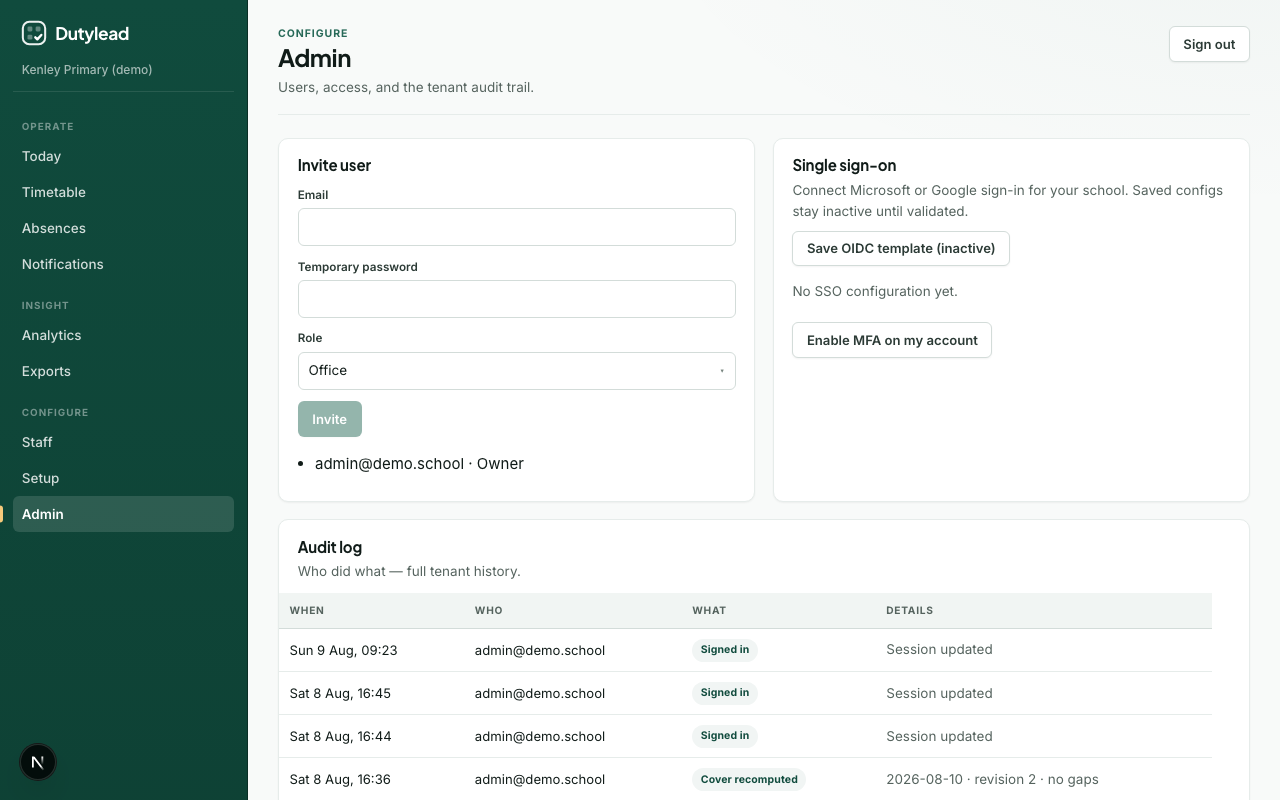
Requires role
Admin or Tenant owner (user.invite)