
Appearance
Admin users
Who this is for: Tenant owner, Admin
What you'll achieve: Invite users, review roles, enable MFA flag, and read the audit log
Requires role
user.invite / audit.view — Tenant owner or Admin (SSO configure is owner-only)
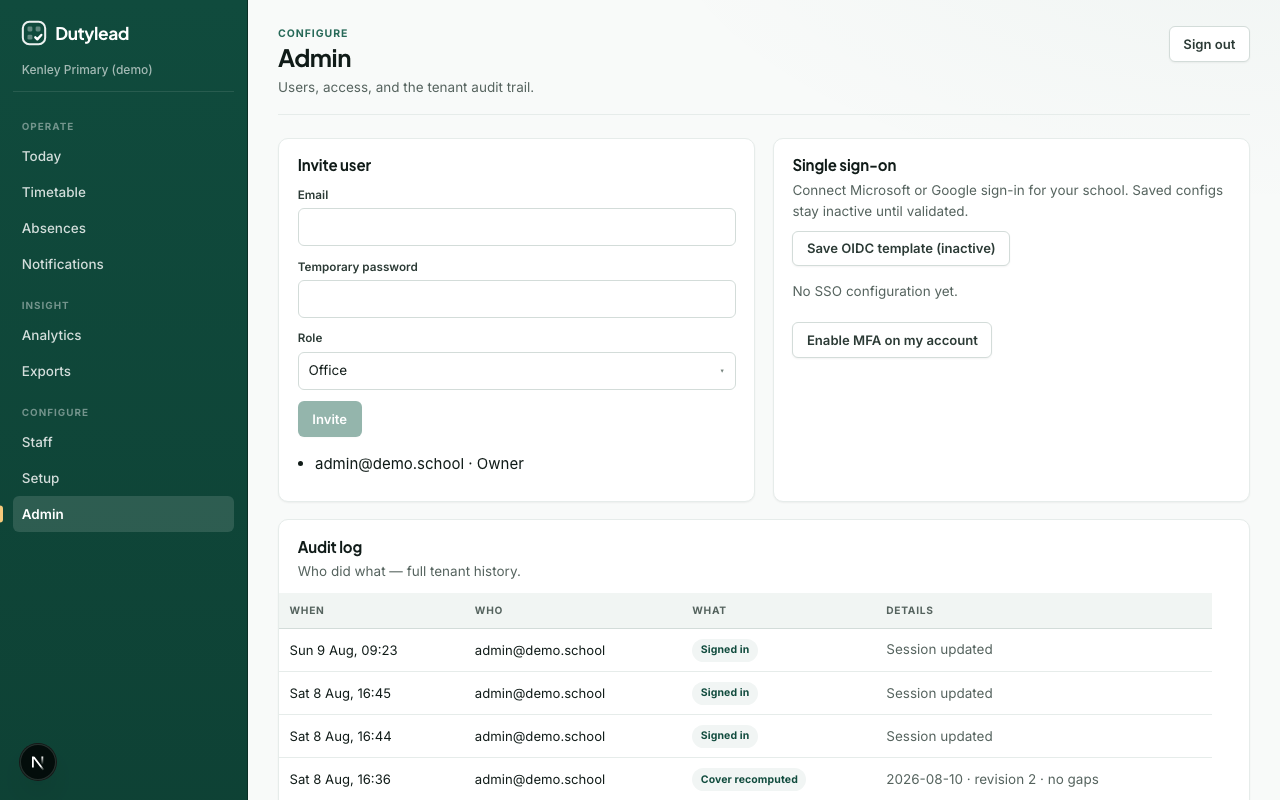
Invite a user
- Open Admin.
- Enter Email, Temporary password, and Role.
- Optionally Link to staff — pick a directory person, or leave blank to auto-match by email (or create a staff record).
- Select Invite.
- Share the portal URL and credentials securely.
Roles available in the invite form: Admin, Duty lead, Office, Staff, Viewer.
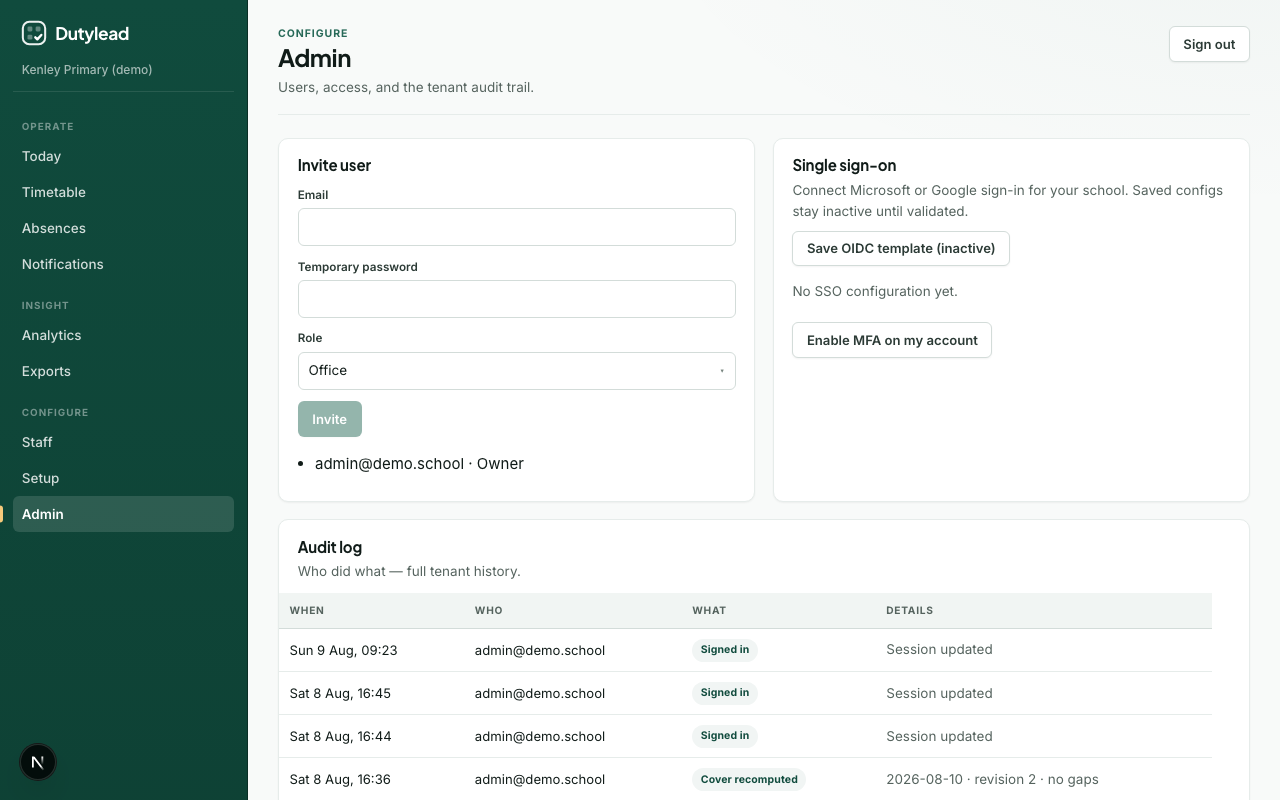
Staff link (My schedule)
A login must be linked to a staff directory person (person_id) to see My schedule, duties, and lessons.
| How the link is made | Behaviour |
|---|---|
| Admin invite | Explicit pick, or auto-match email / create person |
| Admin user list | Change the staff dropdown on any user |
| SCIM provisioning | Match existing staff by external id then email, else create |
| SSO (OIDC) sign-in | Same match rules; backfills link if the user had none |
| Staff CSV import | After import, unlinked users with matching emails are linked |
Review users
The user list shows email, role, an MFA badge, and the linked staff name (or No staff link).
SCIM provisioning
Tenant owners can auto-sync users from Entra, Okta, Google, or any SCIM 2.0 provider. See SCIM provisioning or the IdP pilot runbooks for end-to-end school IT checklists.
MFA flag
Select Enable MFA on my account to store an MFA secret flag for your user.
Current limitations
- There is no TOTP enrolment / challenge UI yet. The flag is stored for forward compatibility.
- Treat MFA as “prepared”, not fully enforced at login.
Audit log
Scroll to the audit section to see paginated history: when, who, what, and details.
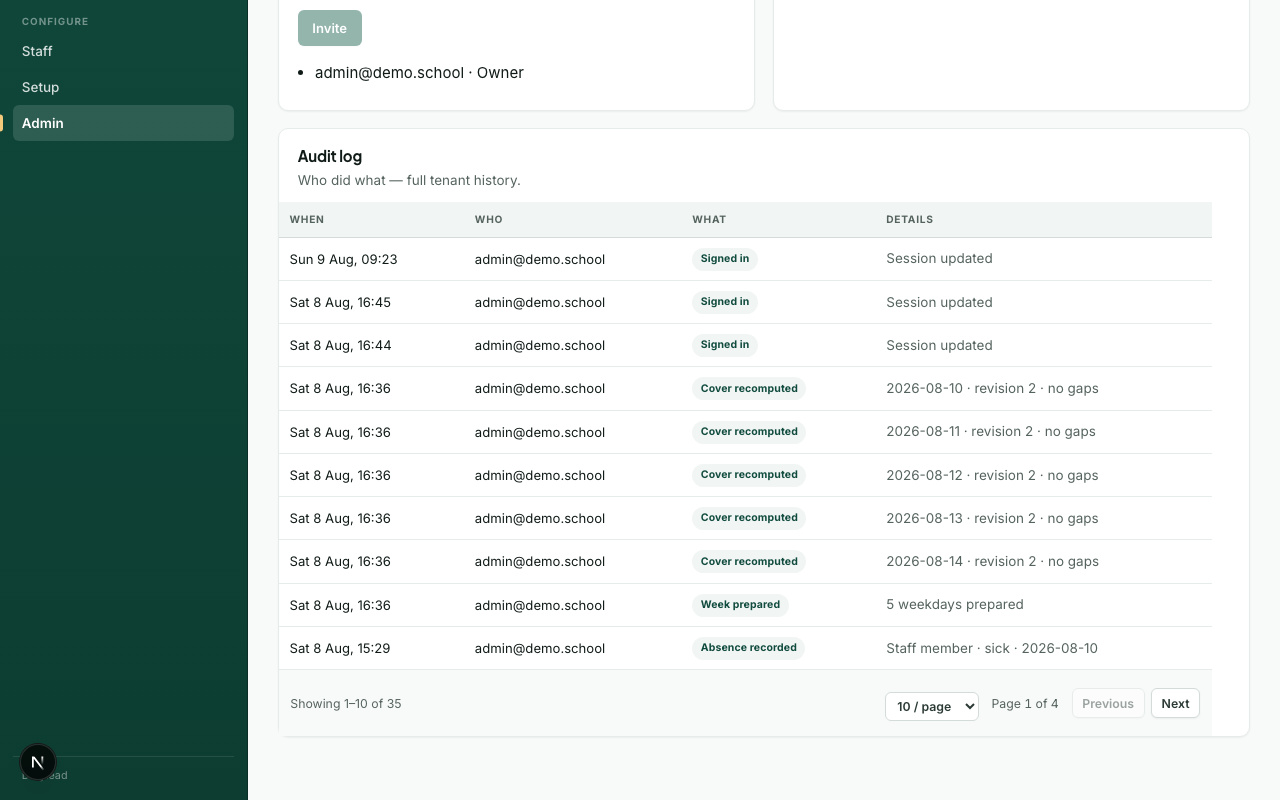
Compliance
Publishes, invites, and configuration changes should appear here. Use it when investigating “who changed the board?”
Sign out
Use Sign out on the Admin page header.